Adobe released version 27.0 of its desktop video editing software, Adobe Premiere, in November 2026.
This update introduces a new color grading environment called “Color Mode,” enhances the functionality of the AI assistant and generated media tools, adds “Separate Crosstalk” to separate overlapping dialogue audio, and improves the usability of effects and masks, among other enhancements across a wide range of video and audio editing features.
Furthermore, support for hardware and video formats has been expanded, including compatibility with NVIDIA RTX Spark-equipped PCs and support for the Sony FX5’s X-OCN format.
Adobe Premiere Version 27.0 Main Features
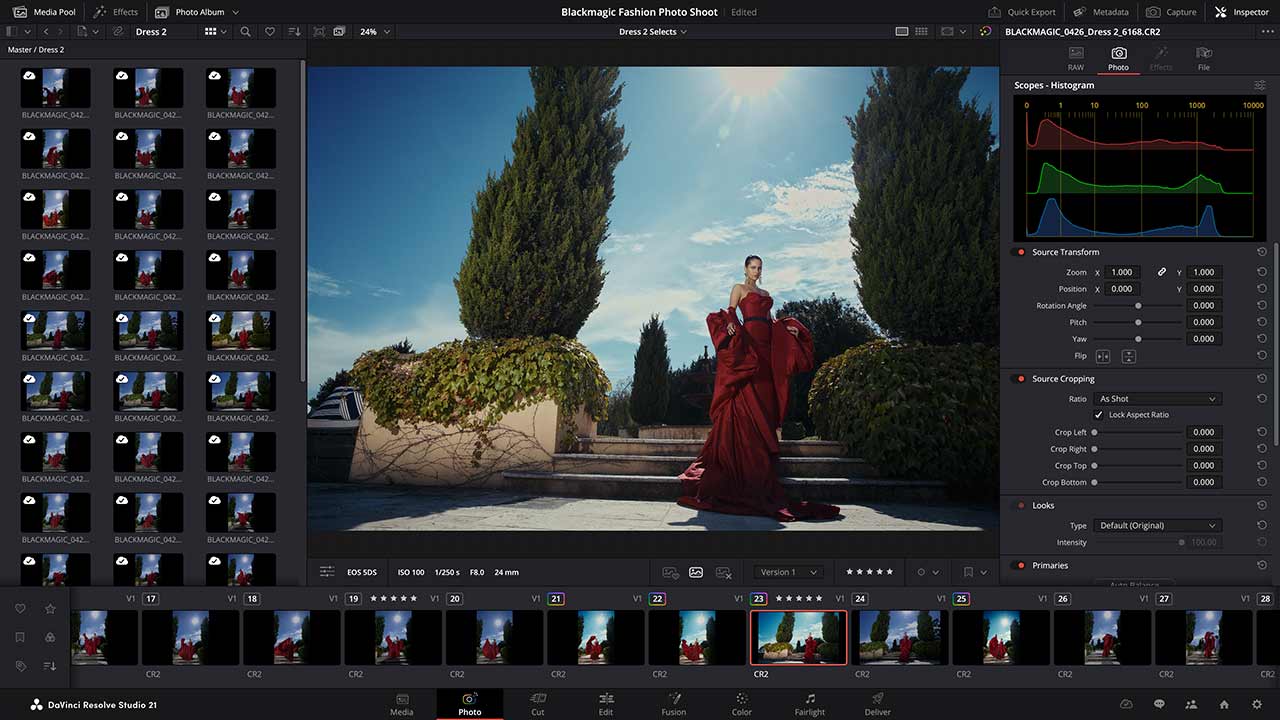
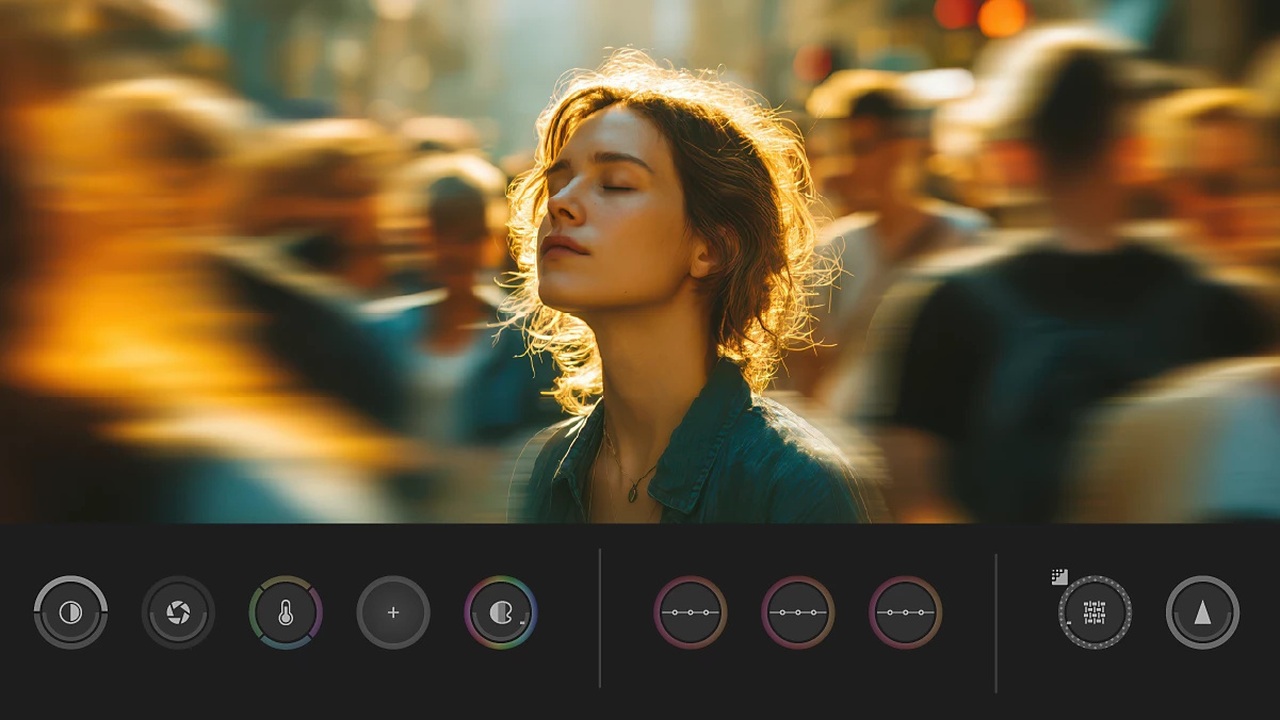
Enhanced color modes and color grading features
Smooth transition from editing to color grading
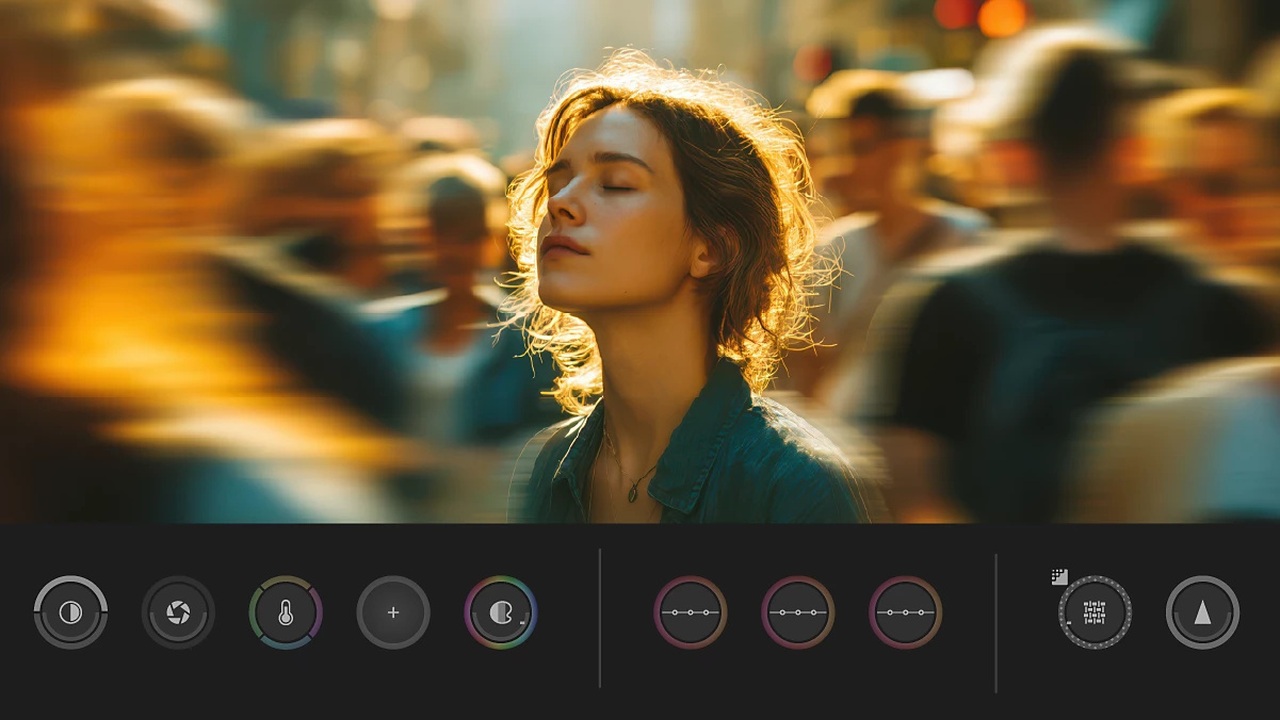
Premiere 27.0 adds a new workspace for color grading called “Color Modes.”
Designed for editors, this dedicated operating environment allows for seamless transitions between editing and color adjustments, enabling color correction of individual shots and management of the overall sequence look.
You can adjust the color and contrast of multiple shots while checking them, allowing for a smooth transition from editing to color grading. Compatibility with projects using the traditional Lumetri Color has also been considered, and existing Lumetri Color effects can still be used.
For more information about color modes, click here .
Selective adjustment of specific colors using HSL masks

The newly added “HSL Mask” feature allows you to separate colors in an image based on hue, saturation, and brightness, and apply color adjustments only to specific areas.
Because it can be combined with other masking functions, it is possible to select and adjust specific areas, such as a person’s skin tone or a particular background color. When combined with color modes, it supports more detailed color grading.
Expanding AI assistant and generative media tools
AI assistant assists with editing tasks.

A new “AI Assistant” panel has been added.
The AI assistant is a feature that references the media and editing content included in a Premiere project and assists with editing tasks based on natural language instructions.
The AI can be used to perform repetitive tasks such as organizing and renaming clips, adding markers, classifying materials, and creating rough edits. Furthermore, it can handle editing tasks that combine multiple operations, such as generating transcripts, creating subtitle files, and applying effects.
Editors can proceed with their work while checking the results performed by the AI, which is expected to reduce the burden of organizing materials and preparing for editing.
Generate images with a media generation tool.
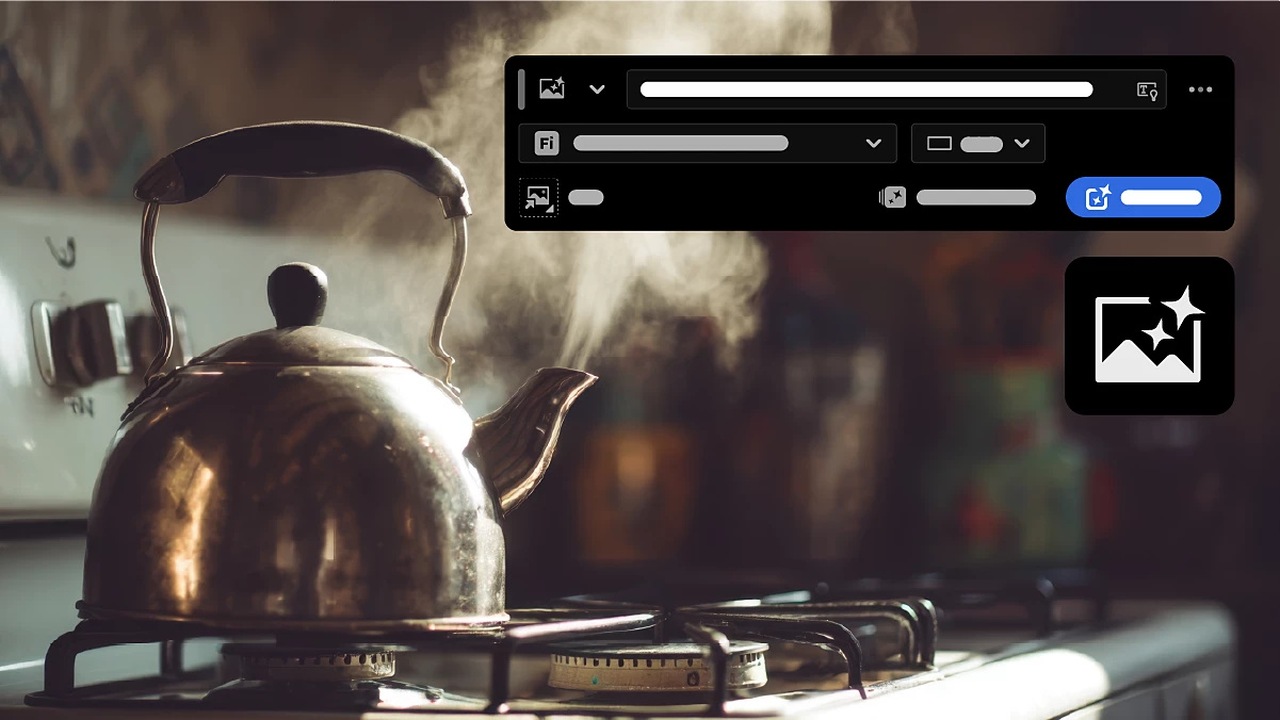
Premiere’s “Create Media Tools,” available on the timeline, have been expanded to support the creation of images, music, soundscapes, and more.
You can add the generated media to the sequence by specifying the range to generate on the timeline and entering text prompts.
Image generation allows you to create still images from text-based instructions. You can generate the necessary visual materials on the timeline without interrupting your editing process.
Learn more about our media generation tools here.
Generate music and sound effects needed for editing.
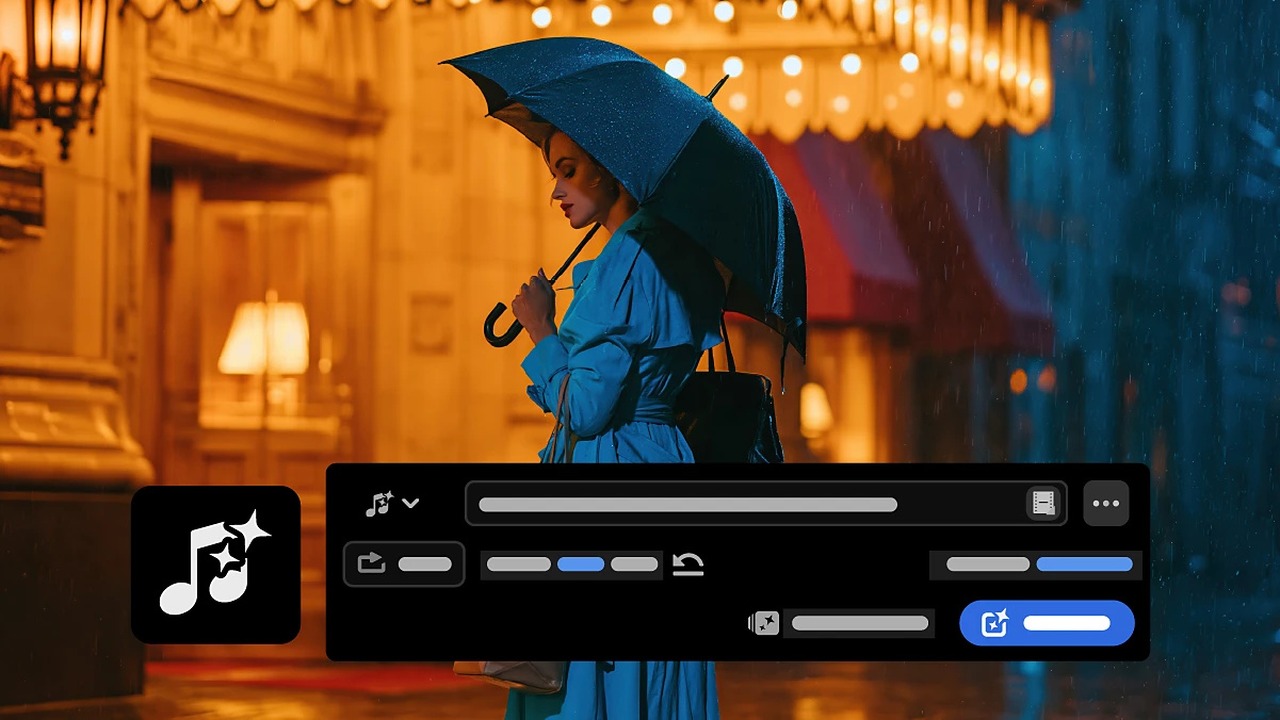
The audio generation capabilities of the media generation tool have also been enhanced.
The “Generate Music” feature allows you to create original royalty-free music using text prompts and add it to your Premiere timeline. It’s a system that generates the necessary musical elements to match the content and artistic intent of your video.
Additionally, a new “Synchronize with Video” function has been added to the “Generate Sound Effects” feature. This allows users to place generated sound effects according to the content and timing of the video, streamlining the process of individually searching for sound effects and adjusting their timing.
“Generating soundscapes” by analyzing video to create ambient sounds.
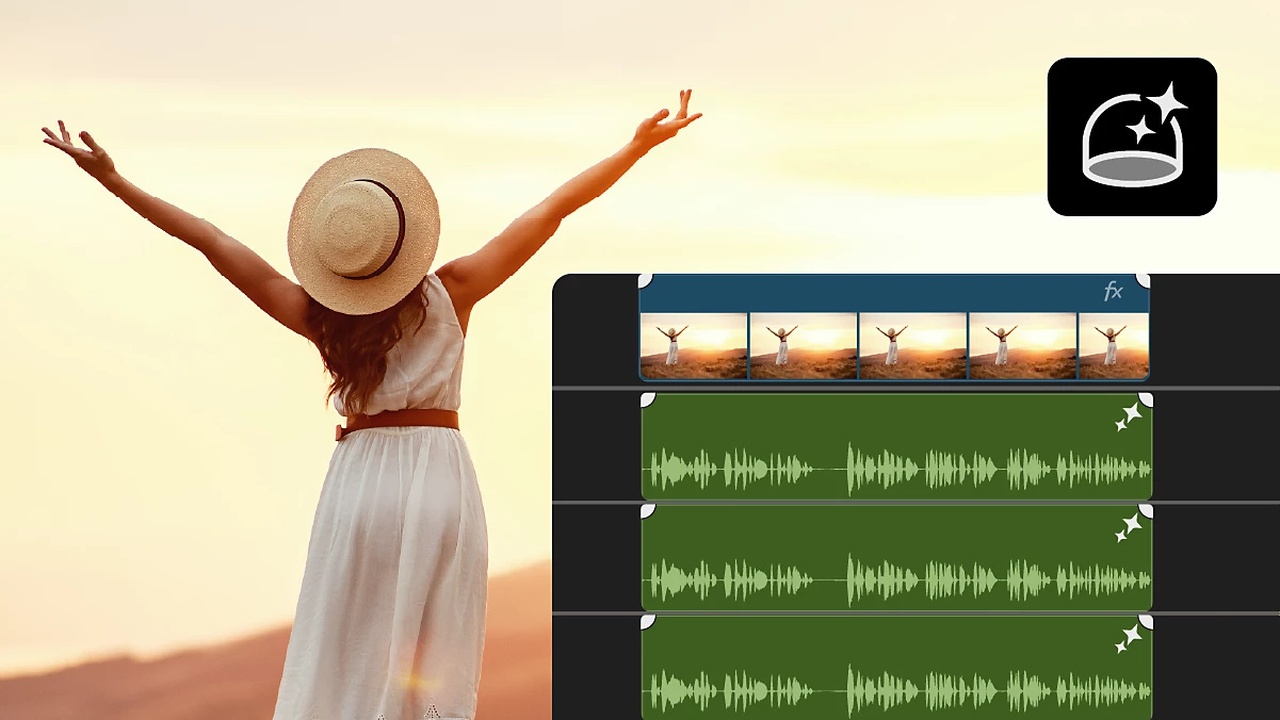
“Generate Soundscape” is a feature that uses AI to analyze the video content and automatically generate layers of ambient sounds and sound effects that match the scene.
Because you can create sound effects tailored to the situation in the video directly on the timeline, it streamlines the process of finding and placing ambient sounds and sound effects one by one. The generated audio can be used as editing material and adjusted as needed.
Please note that the terms of use for the generation AI function vary depending on your contract plan, account, region, and the AI model used. Generation credits may be required for media generation, and functions that use cloud processing require an internet connection.
Improved speech separation, correction, and audio editing capabilities.
Improved the usability of the “Emphasize Audio” function.

The “Enhance Audio” feature, which improves the clarity and sound quality of dialogue, has been updated with new adjustment controls and a user interface.
It is now easier to adjust the sound quality of audio from interviews, narrations, and on-location recordings to suit the recording environment.
“Crosstalk Separation” automatically separates the overlapping voices of two people.

The new “Separate Crosstalk” feature uses Adobe Firefly’s audio service to automatically detect and separate the voices of two speakers mixed together in a single audio track.
From audio recordings of multiple speakers speaking simultaneously, it’s possible to generate separate tracks for each speaker’s voice and background noise. These separated audio tracks can be independently edited and mixed on the timeline, making them useful for post-production of dialogues, interviews, and other similar work.
Another feature is that it can process the audio while preserving the original audio. After processing, the original audio track is automatically disabled, and the separated audio tracks can be adjusted individually.
This feature is a cloud-based premium feature and consumes one generation credit for every second of audio processed. The length of the clip processed in a single run ranges from 1 second to 10 minutes. The length of the audio handles added before and after the processing range also affects the credit consumption.
For more information on how to separate overlapping speakers, click here .
Automatic ducking that follows the editing content
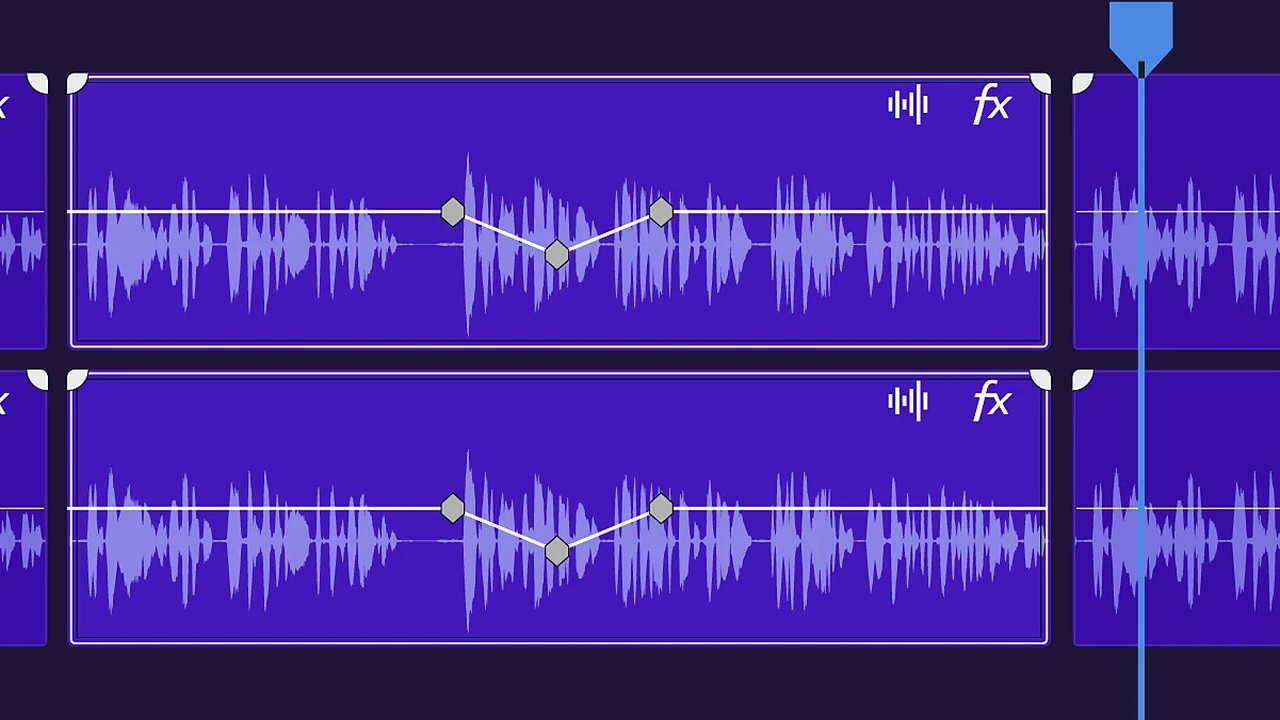
With “Automatic Ducking,” keyframes for volume adjustment are now automatically updated in response to editing operations such as adding, trimming, and muting audio clips.
This eliminates the need to regenerate keyframes every time you change the edited content, making it easier to maintain the volume balance between dialogue and background music.
Real-time display of audio waveform during recording.
When recording using the audio track mixer or voiceover function, the audio waveform is now displayed on the timeline in real time.
The ability to check the waveform during recording makes it easier to visually understand the audio recording status.
Display iXML metadata in the timeline and source monitor.
iXML metadata, which contains information about the recording process, can now be viewed on the timeline in audio clips and source monitors.
This makes it easier to access metadata contained in audio materials, streamlining the review and management of recorded material.
Improved sound quality when adjusting speed and duration.
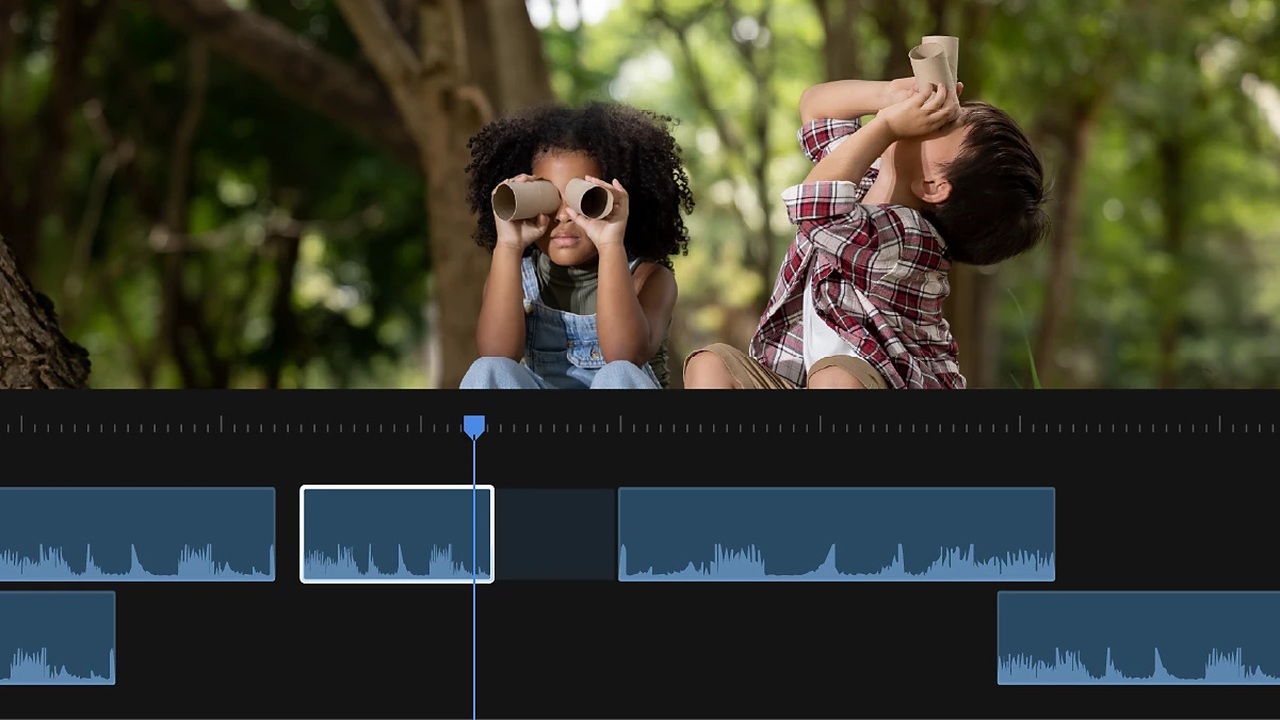
The speed and duration settings dialog has also been redesigned.
Multiple audio stretching modes, high-quality processing methods, and pitch control have been added, making it easier to maintain natural-sounding audio when changing the playback speed or length of clips.
Previously, some audio adjustments required integration with Adobe Audition, but now these can be completed entirely within Premiere.
Enhancements to effects, masks, and transitions.
Improved the search and preview functionality of the effects panel.
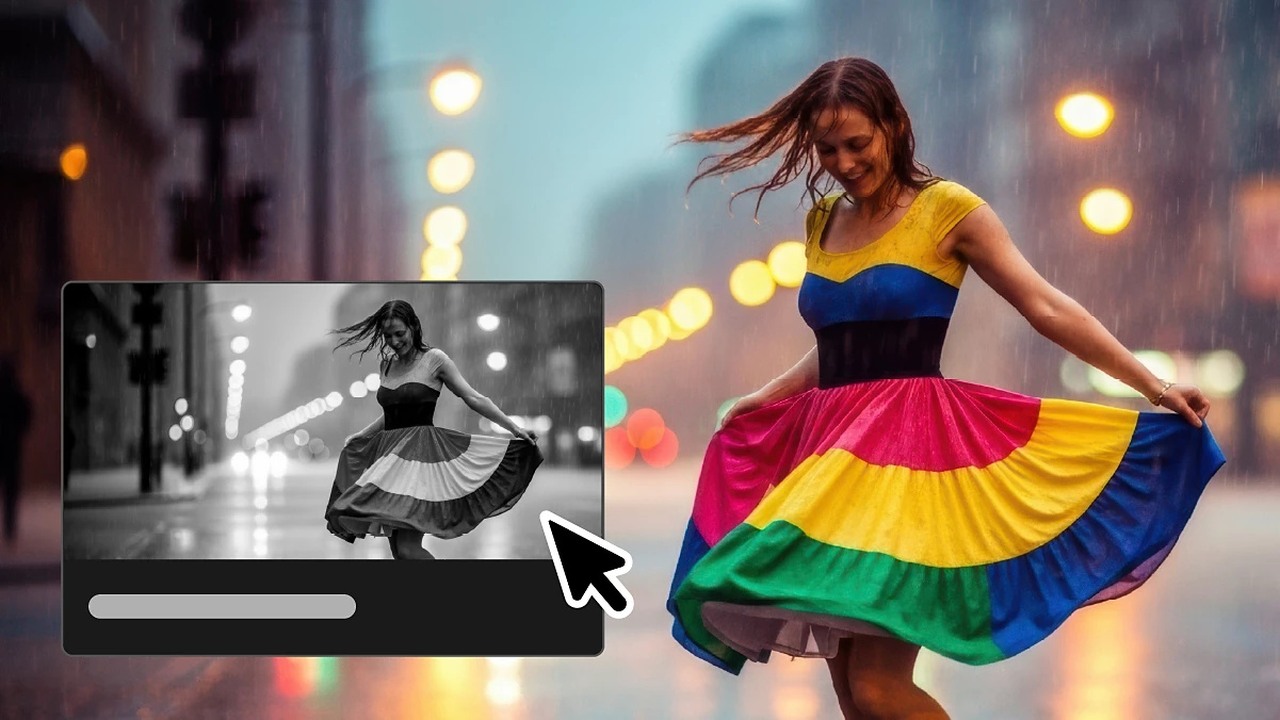
The Effects panel has been updated, allowing you to view video effects and transitions as thumbnail images and preview videos.
The search function has also been improved, making it easier to find the effects you need. Additionally, the “Preview from Source” feature allows you to see how the effects will look when applied to the actual footage, improving the efficiency of your effect selection process.
Adobe Premiere Version 27.0 Adds 8 new effects
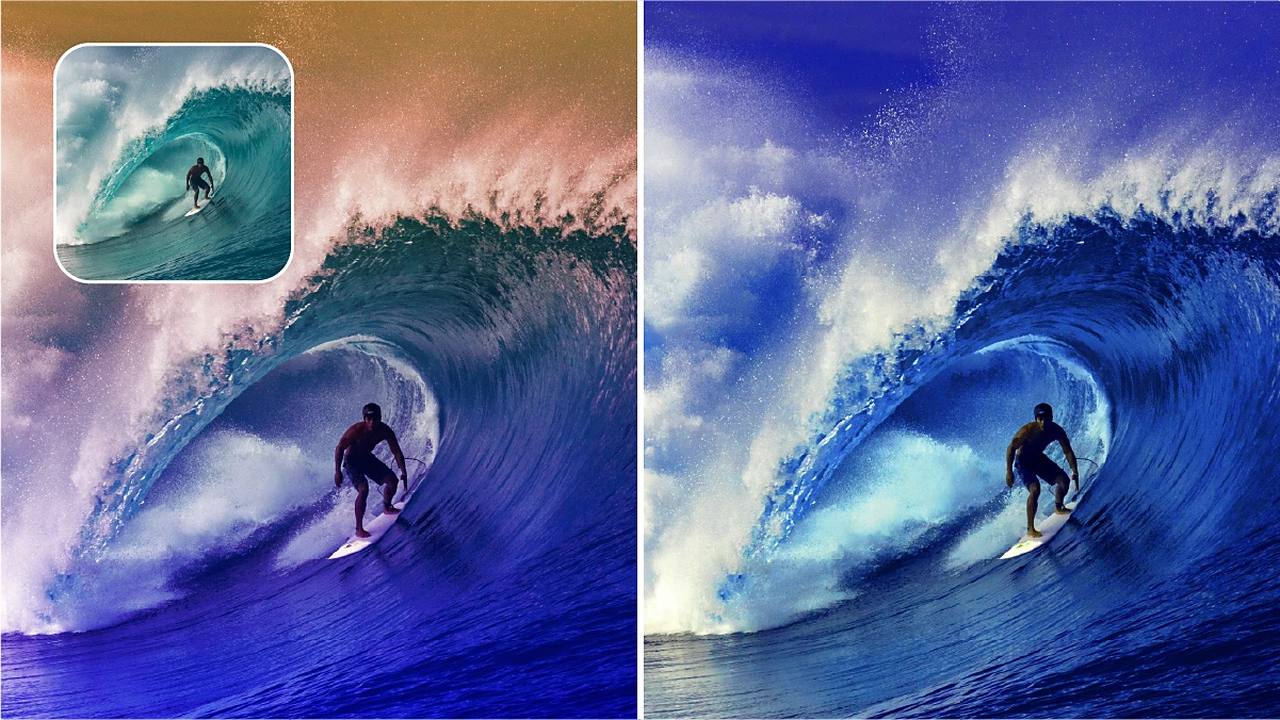
Eight new video effects have been added.
It includes features such as “Bevel Alpha,” “Bevel and Emboss,” “Posterization,” “Radial Blur,” and “Zoom Blur,” and can be used for compositing, texture rendering, motion design, and more.
The options for adjusting the texture, three-dimensionality, and movement of images are expanding.
Improved effect adjustments in the properties panel.

Video effects, audio effects, and masks are now displayed as cards within the properties panel.
In addition to the traditional effects control panel, various settings can now be viewed and changed from the properties panel, allowing for more concise adjustments.
Improved the accuracy and management capabilities of object masks.

Object masks now offer improved tracking performance and mask quality.
Furthermore, the size of the mask file has been reduced, and file management and restoration processes have been simplified. This makes it easier to manage mask data, even when moving projects between different systems.
This is expected to improve efficiency in creating masks for complex subjects and in collaborative work using multiple editing environments.
Complementing transition frames through generation and extension.
“Generation Extension” now allows AI to generate additional frames when there are insufficient surplus frames required for a transition.
Even if there aren’t enough frames remaining before or after the source material, the generation AI can be used to supplement the footage needed for the transition.
Expanded support for hardware and video formats
Native support for PCs equipped with NVIDIA RTX Spark.
Adobe Premiere Version 27.0 adds native support for Windows on ARM (ARM64) on PCs equipped with NVIDIA RTX Spark (N1X) chips.
Leveraging NVIDIA TensorRT acceleration, the processing of AI features running on the device, such as object masking, speech enhancement, and scene editing detection, is accelerated.
Furthermore, processing performance for some AI and machine learning-based functions has been improved in Windows environments equipped with NVIDIA RTX GPUs.
Click here for more details on Windows on ARM .
Sony FX5 expands its support for the X-OCN format.
Support for camera formats has also been enhanced, now including support for Sony FX5’s X-OCN LT, C1, and C2 formats.
Furthermore, support for RAW formats such as ARRI ARRIRAW, ARRICORE, Canon Cinema RAW Light, RED R3D/R3D NE, and Nikon N-RAW has been expanded for Windows on ARM environments.
On the other hand, support for importing conventional Sony RAW and Sony 16-bit linear F65 RAW formats has been discontinued.
Changes to System Requirements
Adobe Premiere Version 27.0 also includes updated requirements for compatible operating systems and hardware.
Windows requires Windows 11 version 24H2 or later, while Mac users will need an Apple Silicon machine and macOS 15 or later.
Macs with Intel processors are no longer supported in version 27.0 and later, so prior confirmation is necessary if you are updating from an existing environment.
Furthermore, minimum GPU memory requirements have been set, and Premiere will no longer launch in environments that do not meet these requirements. In Windows environments, 4GB or more of GPU memory is required, and if the system requirements are not met, the reason will be displayed in the system compatibility report.
For details on compatible operating systems and hardware, please refer to the Adobe Premiere system requirements.
Adobe Premiere Version 27.0 also includes improvements across the entire editing workflow, such as enhanced timeline usability and increased efficiency in various processes.
Details of the update can be found in the Adobe Premiere desktop version release notes.